September 11, 2026
Best Mobile Calendar for Field Service Businesses in 2026

FieldVibe vs. Jobber vs. Housecall Pro vs. ServiceM8 vs. Contractor+
If you run a service business, your calendar isn't a nice-to-have — it's where your whole day happens. You check it before you leave the house, glance at it between jobs, and pull it up the second a customer calls to reschedule. If that screen is slow, confusing, or missing basic features, it costs you real time, every single day.
We wanted to know which field service apps actually get this right on mobile. So we opened the iOS app for FieldVibe and four popular competitors — Jobber, Housecall Pro, ServiceM8, and Contractor+ — and tested their calendars side by side, looking at how each one handles the things you do constantly: viewing your day, moving jobs around, checking who's free, and simply seeing enough of your schedule at a glance.
Methodology: All apps were tested hands-on on iOS in September 2026, focusing on the built-in calendar/scheduling screen. App interfaces change over time, so if you're reading this later, it's worth double-checking current functionality — but at the time of testing, the differences below were clear and consistent.
Why the Mobile Calendar Matters More Than You'd Think
For a solo operator or a small crew, the calendar isn't just a schedule — it's the tool you use to answer questions like:
- "Can I fit one more job in today?"
- "Who's free tomorrow afternoon?"
- "The customer needs to push this back two hours — can I just drag it?"
- "It's raining. Which jobs need to move to tomorrow?"
None of that should require digging through menus or switching screens. It should feel as natural as using Google Calendar or Apple Calendar — apps most of us already use every day and don't have to think about.
What We Compared
We tested eight things that matter most when you're managing jobs from your phone:
- Calendar views available — Can you see your day, week, or month, or just a flat list?
- Navigation — Can you swipe between days, or do you have to tap through a picker?
- Working hours on the calendar — Does the view reflect the hours you actually work?
- Long-tap and drag to set job duration — Can you press and drag to block out how long a job will take?
- Drag jobs to reschedule — Can you move a job to a new time by dragging it, instead of opening it and editing the date?
- Separate column per employee — If you have a team, can you see everyone's day side by side?
- Pinch to zoom — Can you zoom in for detail or zoom out for a bird's-eye view of the day?
- How much of the screen the calendar actually takes up — When you're standing in a driveway checking your day, does the calendar fill the screen, or is it squeezed between menus and headers? For reference, Apple's own Calendar app uses about 70% of the screen for the calendar itself in daily view for a solo user — a useful baseline for what feels normal.
App-by-App Breakdown
FieldVibe
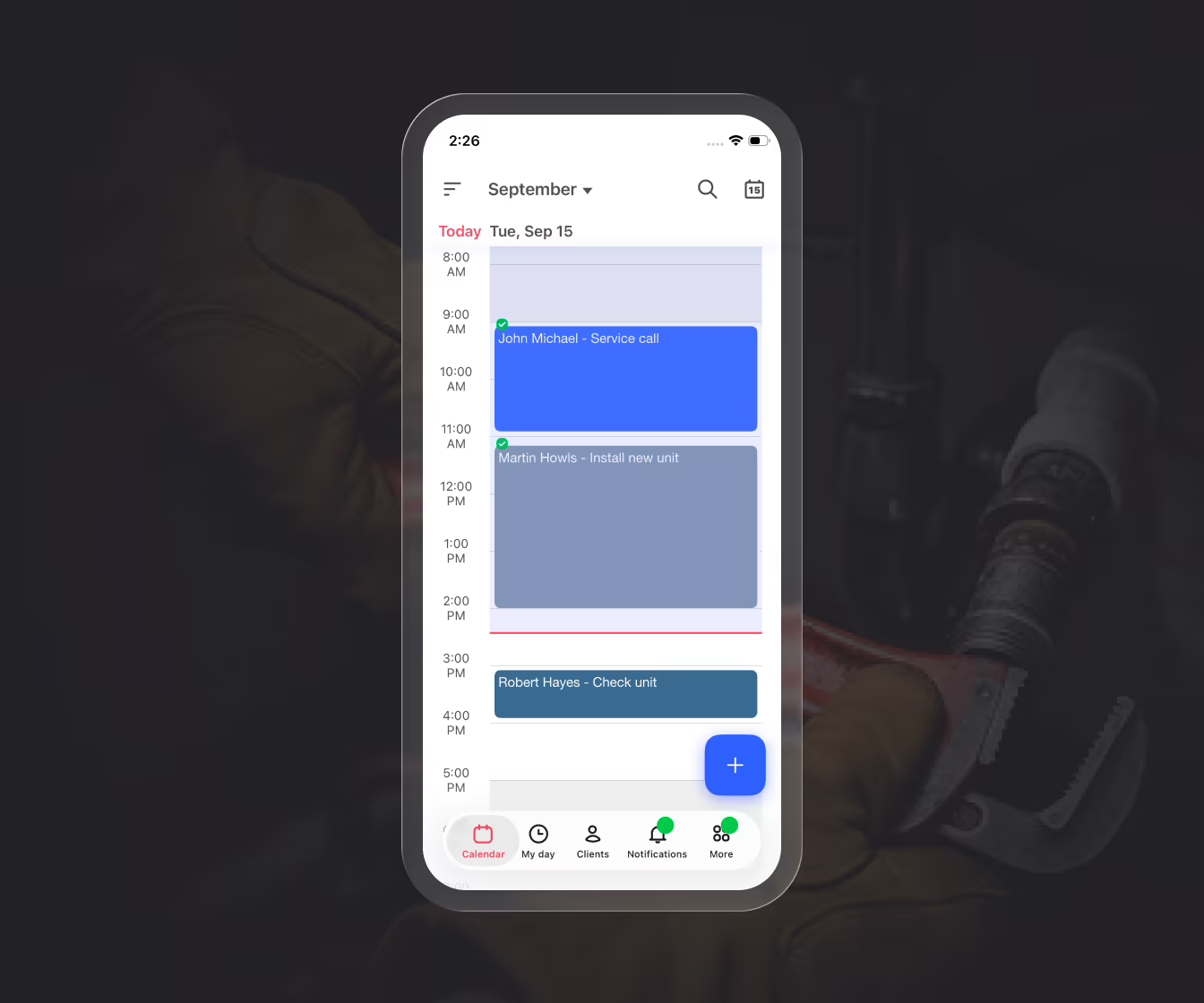
FieldVibe's calendar covers every view a service business actually uses — List, Day, Week, Month, and Map — and you move between them with a swipe, not a tap through menus. It shows your real working hours, so you're not scrolling through a blank overnight schedule to find your day. You can long-tap and drag to block out a job's duration, drag an existing job to a new time slot to reschedule it, and pinch to zoom in or out. If you manage a team, each employee gets their own column, so you can see everyone's day at a glance.
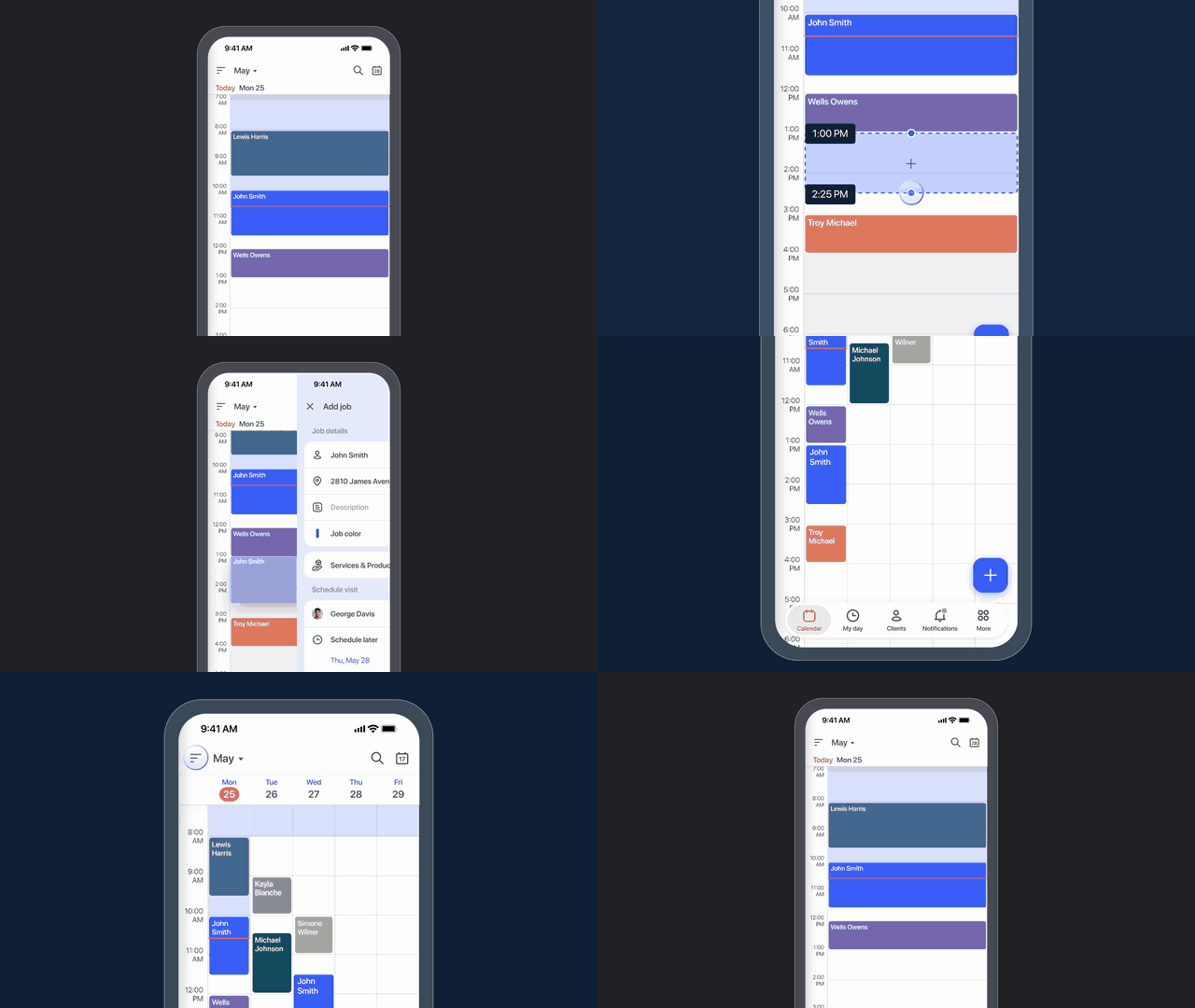
On top of that, the calendar itself fills about 75% of the screen in daily view — more than Apple's own Calendar app (roughly 70%), so you see more of your actual day without scrolling.
Jobber
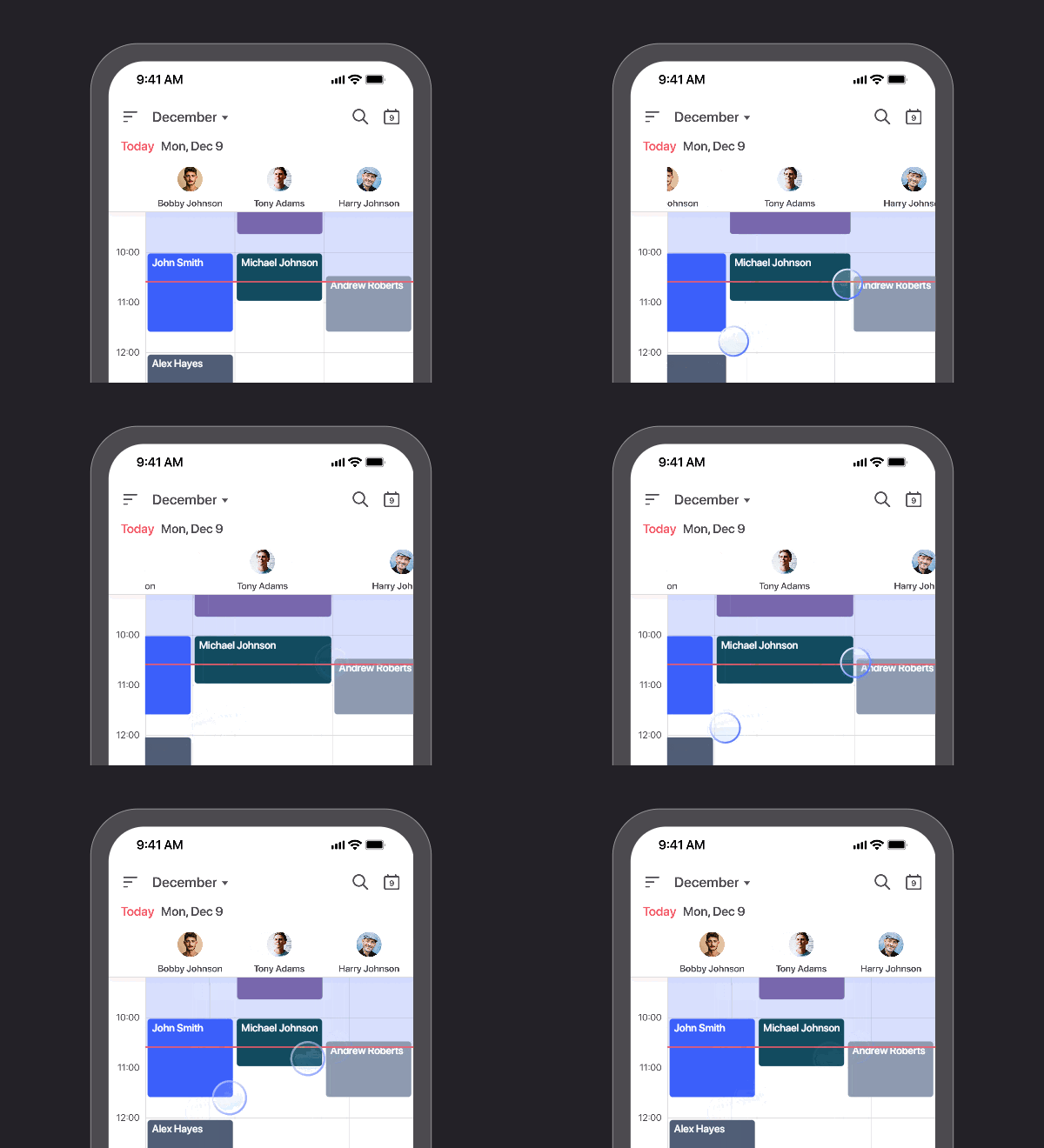
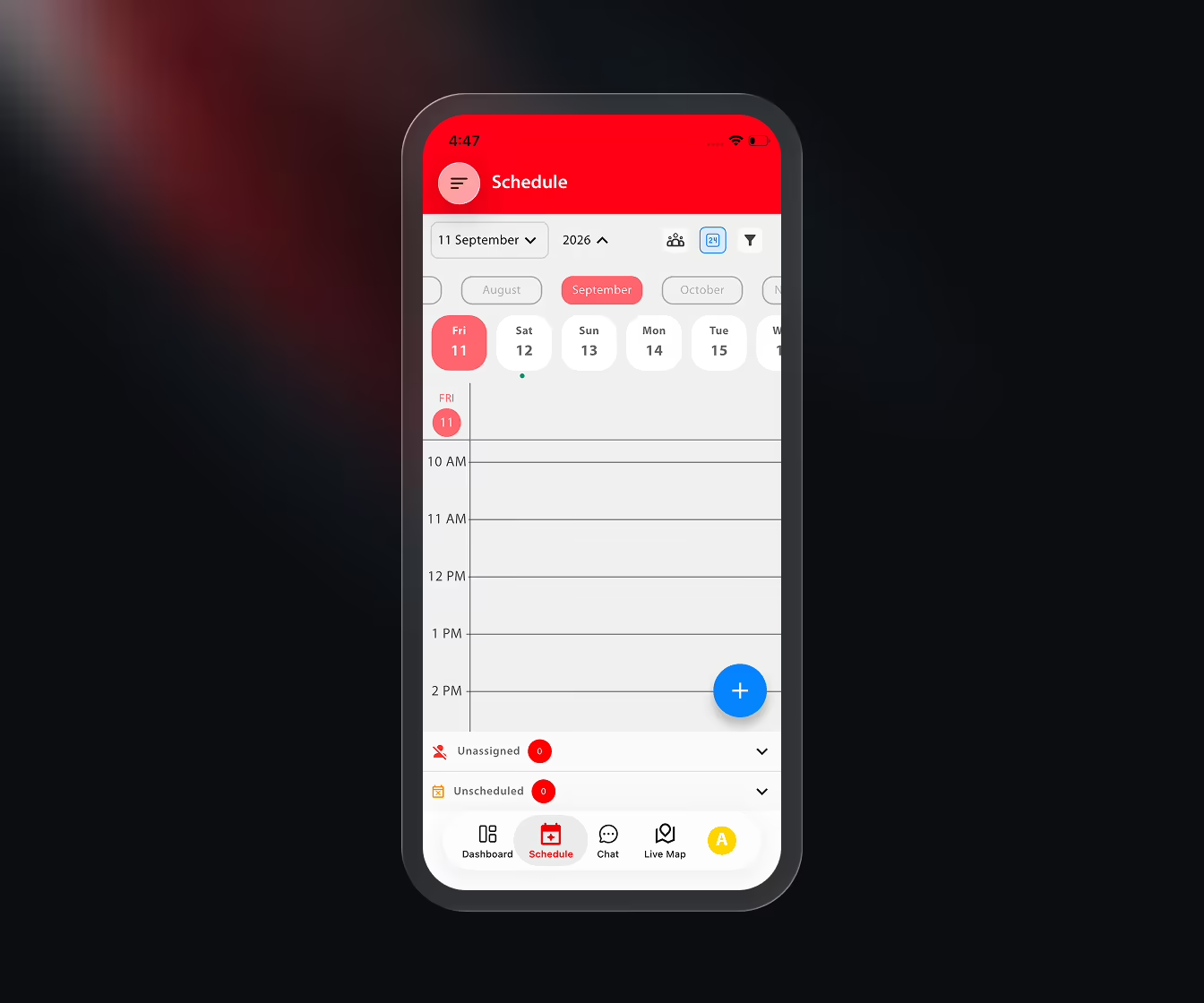
Jobber is the closest competitor in terms of raw view options — it even adds a 3-Day view, which FieldVibe doesn't currently offer, useful if you want to glance slightly further ahead without jumping to a full week. It also supports employee columns for team scheduling, visible in the screenshot below. But there's no Month view, navigation is a tap-through-picker instead of a swipe, and the "working hours" view only hides weekends — it doesn't otherwise adapt to your schedule. There's no drag-and-drop rescheduling and no long-tap duration setting.
Its calendar also takes up the smallest share of the screen among the multi-view apps we tested, at 60%.
Housecall Pro
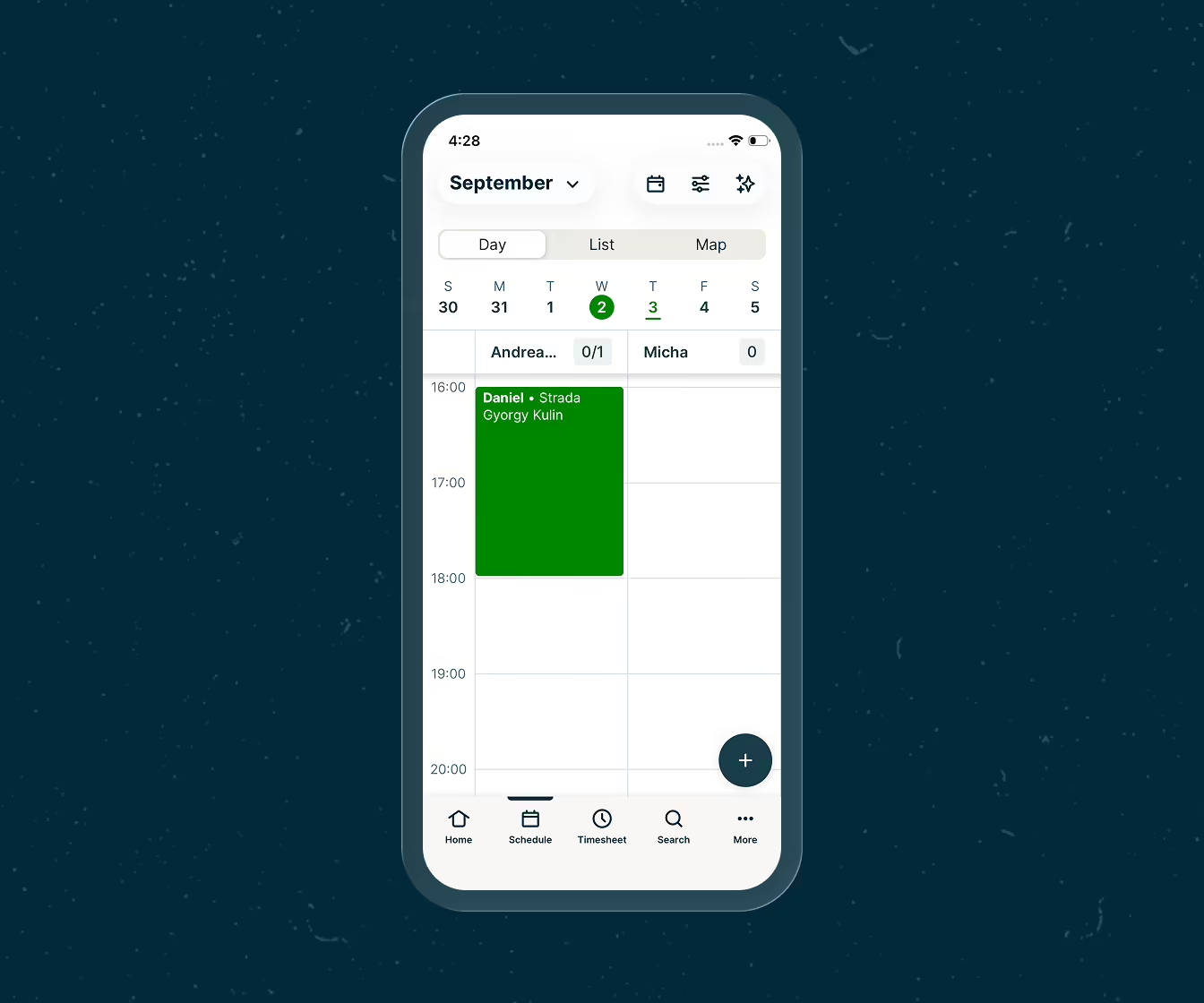
Housecall Pro keeps things simple with just List and Day views, navigated by swipe. Beyond that, it doesn't offer working-hours display, drag-and-drop rescheduling, employee columns, or zoom — so if you need to reschedule a job, you'll be doing it by opening the job and editing the details rather than dragging it on the calendar. Its calendar does take up a solid 70% of the screen in daily view, matching the Apple Calendar baseline.
ServiceM8
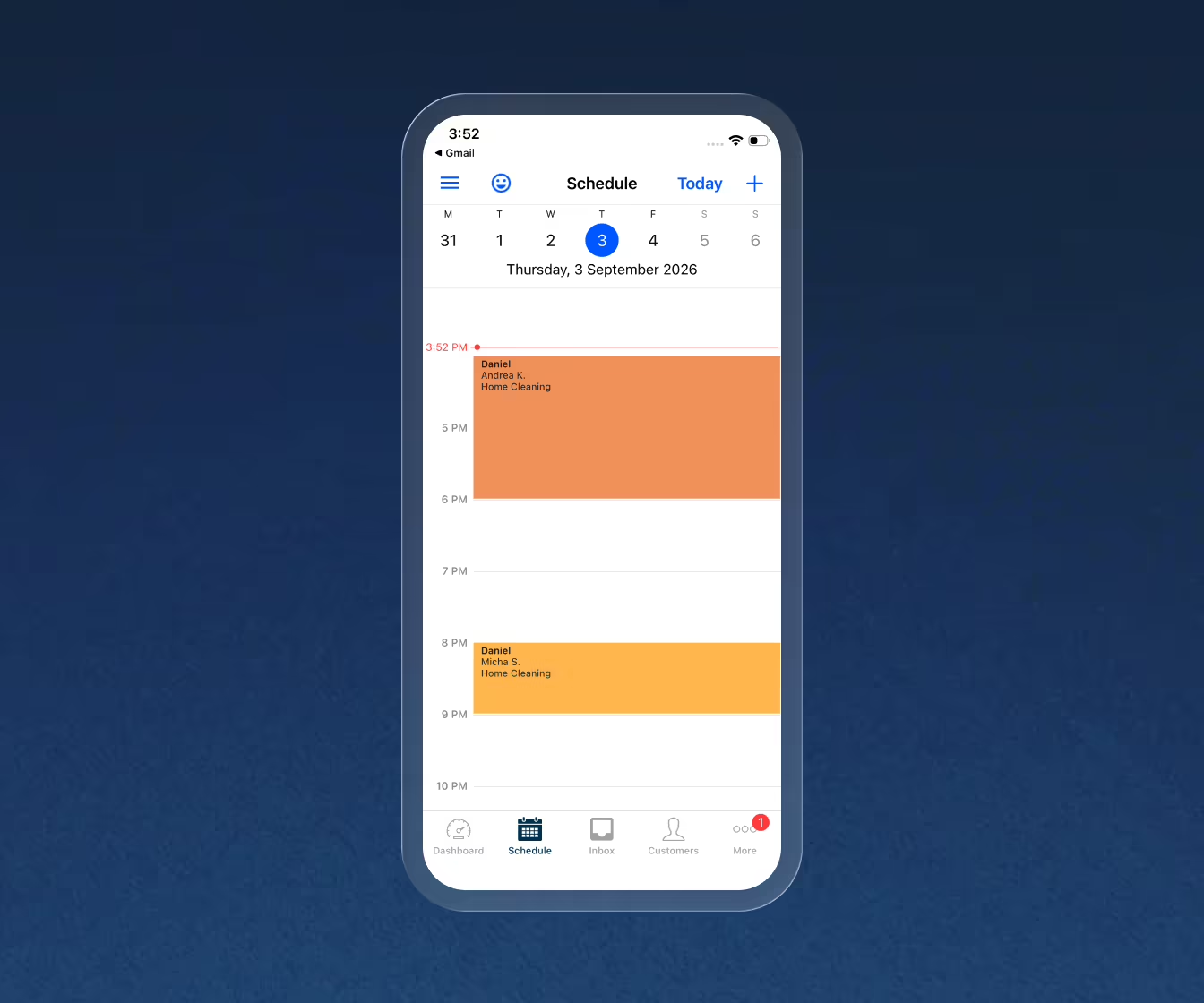
ServiceM8's mobile calendar is more capable than it might first appear. It offers List, Day, and Map views, navigated by swiping or tapping a date picker. Where it stands out is interaction: ServiceM8 shows your working hours, lets you long-tap and drag to set a job's duration, and lets you drag existing jobs to reschedule them — matching FieldVibe on all three of those points. What it doesn't have is a Week or Month view, employee columns, or pinch-to-zoom, so it's better suited to a solo operator managing their own day than a team trying to see everyone's schedule at once.
Its calendar takes up 70% of the screen, in line with Apple's Calendar app.
Contractor+
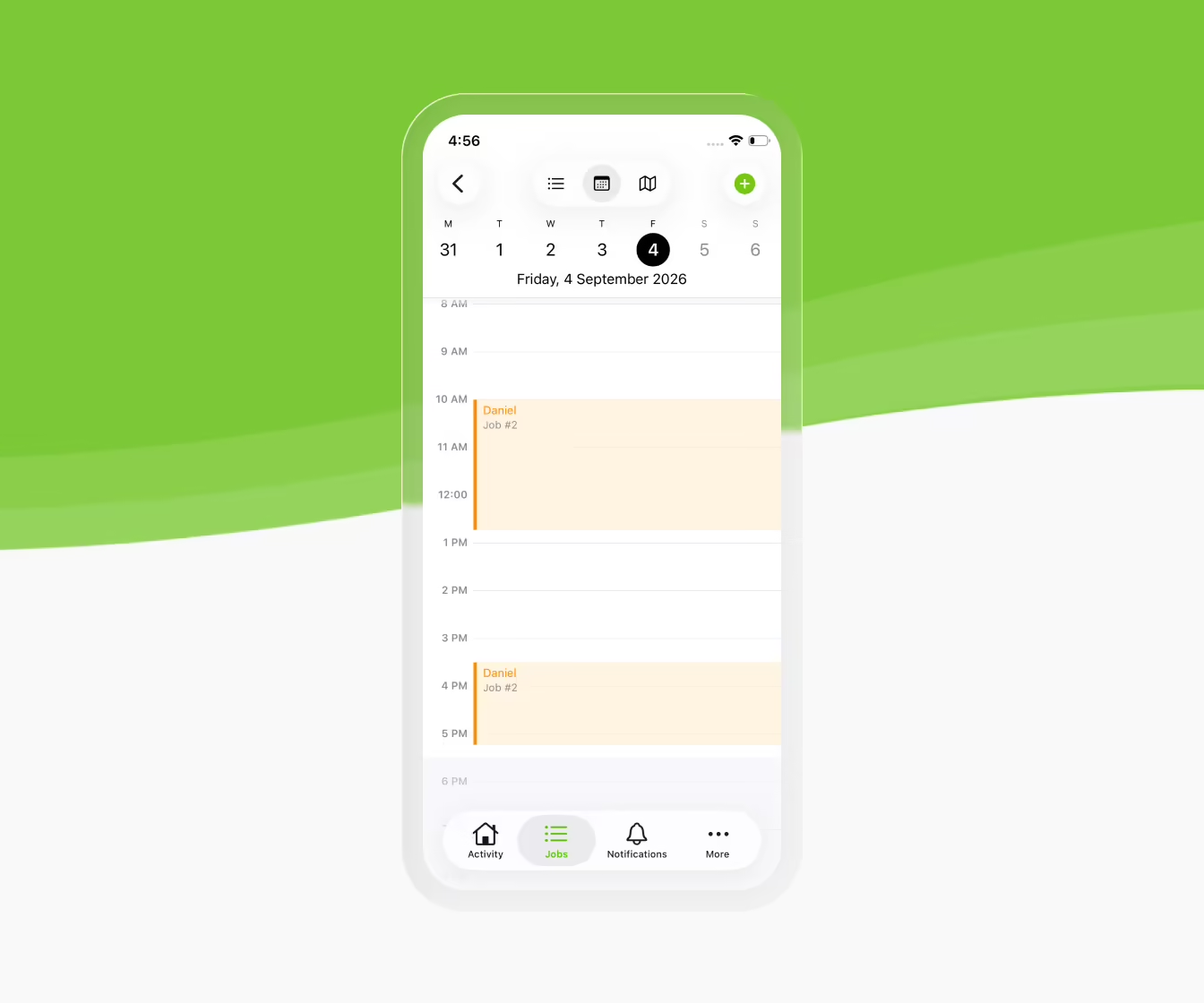
Contractor+ offers List and Day views, but its Week and Month options aren't real calendar grids — they're filtered lists of jobs from that period. Navigation is tap-through-picker, and none of the other interaction features (working hours display, drag-to-set-duration, drag-to-reschedule, employee columns, zoom) are supported.
Its calendar also occupies just 47% of the screen in daily view — noticeably less than the roughly 70% baseline set by Apple Calendar, meaning more of the screen goes to menus and headers than to your actual schedule.
Real-World Scenarios
An HVAC company with four techs needs to glance at everyone's schedule at once before dispatching an emergency no-cooling call. With FieldVibe or Jobber's employee columns, that's a five-second glance. With Housecall Pro, ServiceM8, or Contractor+, it means checking each tech's schedule separately.
A solo lawn care pro gets rained out mid-morning and needs to push the rest of the day's jobs to tomorrow. On FieldVibe or ServiceM8, that's a drag per job. On Jobber, Housecall Pro, and Contractor+, it means opening each job individually and editing the date.
A cleaning business owner is booking a new recurring client and wants to see the whole month to find a pattern that doesn't clash with existing jobs. Only FieldVibe's actual Month view supports that — Jobber and ServiceM8 don't offer one at all, and Contractor+'s "month" is just a list.
A solo pool service tech glances at their phone between stops and wants to see as much of today's schedule as possible without scrolling. FieldVibe's calendar fills 75% of the screen — more than Apple's own Calendar app. Contractor+'s fills less than half the screen (47%), leaving more room for menus than for the actual schedule.
Key Takeaways
- FieldVibe is the only app with full Week, Month, and Map views, employee columns, and pinch-to-zoom, along with all three interaction features tested (working hours, drag-to-set-duration, drag-to-reschedule) — and it uses the most screen space for the calendar itself, at 75%.
- ServiceM8 is a strong surprise for solo operators: it matches FieldVibe on working-hours display, duration-drag, and reschedule-drag, and its calendar fills a healthy 70% of the screen — but it has no Week/Month view or employee columns, so it doesn't scale to teams as well.
- Jobber offers the most views after FieldVibe (plus a unique 3-Day option) and supports employee columns, but has no drag-based scheduling and the smallest calendar area (60%) among the multi-view apps.
- Housecall Pro keeps a clean 70% screen-to-calendar ratio but stays minimal everywhere else — just List and Day views, no drag features.
- Contractor+ is the most limited overall: no real Week/Month calendar, no interaction features tested, and by far the smallest on-screen calendar at 47%.
FAQ
What's the best field service app for scheduling on mobile? Based on this comparison, FieldVibe offered the most complete mobile calendar of the five apps tested — combining full Week and Month views, employee columns, pinch-to-zoom, and the largest on-screen calendar at 75% of the display.
Does Jobber have a drag-and-drop calendar on mobile? No. In our testing, Jobber's iOS app didn't support dragging a job to reschedule it or long-tapping to set job duration — jobs need to be opened and edited individually.
Can you see a Month view in Jobber's mobile app? No. Jobber's mobile calendar includes List, Day, 3-Day, Week, and Map views, but no Month view, based on our testing.
Does ServiceM8 support drag-and-drop rescheduling? Yes. In our testing, ServiceM8 supported both long-tap duration setting and drag-to-reschedule on its Day view, matching FieldVibe on these two points — though it doesn't offer Week or Month views or employee columns.
Which field service apps show a separate calendar column for each employee? Of the apps tested, only FieldVibe and Jobber displayed a separate column per employee on the mobile calendar, making it easier to compare team schedules at a glance.
Which app's calendar takes up the most screen space? FieldVibe's daily calendar filled about 75% of the screen in our testing — ahead of Housecall Pro and ServiceM8 (70% each, matching Apple's own Calendar app), Jobber (60%), and Contractor+ (47%).
Is FieldVibe free to use? Yes. FieldVibe has a free plan for solo professionals with unlimited jobs and clients — no sales calls or mandatory demos required to get started.
Try It Yourself
Reading a comparison table is one thing — scheduling your actual jobs is another. FieldVibe is free to start for solo professionals, with unlimited jobs and clients, no sales calls, and no demo required. You can be scheduling your first job in a few minutes.
Full Feature Comparison at a Glance
| Feature | FieldVibe | Jobber | Housecall Pro | ServiceM8 | Contractor+ |
|---|---|---|---|---|---|
| Calendar views | List, Day, Week, Month, Map | List, Day, 3-Day, Week, Map | List, Day | List, Day, Map | List, Day (Week/Month show a job list) |
| Navigation | Swipe | Tap date picker | Swipe | Scroll | Tap date picker |
| Shows schedule | Yes | Weekdays only | No | Yes | No |
| Tap & drag | Yes | No | No | Yes | No |
| Employee columns | Yes | Yes | No | No | No |
| Pinch to zoom | Yes | No | No | No | No |
| Calendar size | 75% | 60% | 70% | 70% | 47% |
For reference, Apple's Calendar app occupies roughly 70% of the screen in daily view — used above as a baseline for what feels like a normal amount of visible schedule.